

Contents
“Latest” is a fact, “applies” is a decision
When an employee opens a procedure in SharePoint, they get the most recent version they are allowed to see. An auditor asks something else: which version was approved, who approved it, and which version was in force on a given date. SharePoint can answer part of that, but only if the library was configured to record it. This article goes through what Microsoft’s documentation says about each of these points, and where it stops.
What version history records
According to Microsoft, version history lets you see when a file was changed and who changed it, together with the comments people make when they check files in.[1] Changes to properties are tracked as well as changes to content.[1] For Microsoft 365 customers, versioning is turned on by default when a new library is created.[1]
That is a record of change. It tells you who saved what and when. It does not tell you whether anyone with authority agreed to it. In a library that tracks only major versions and has no approval step, saved changes become the current version that every reader sees.
Major and minor versions
A library can track major versions only, or major and minor versions.[1] Microsoft describes a major version as a milestone, such as a file submitted for review or publication, and a minor version as a work in progress that is not ready for all site participants to read.[1] Major versions are whole numbers such as 5.0, minor versions are decimals such as 5.1.[1] When a draft is published as a major version, its number becomes the next whole number, for example 2.0.[1]
The library owner also decides who sees drafts. The Draft Item Security setting offers three choices: any user who can read items, only users who can edit items, or only users who can approve items plus the item author.[2]
What content approval adds, and what it does not
With the setting Require content approval for submitted items switched on,[3] a submitted item stays in Pending status until someone with at least the Manage Lists permission level approves it.[2] Microsoft’s wording is careful: usually, while an item is pending, only its originator and the people who can manage lists and libraries can see it.[2] After approval it becomes visible to anyone with permission to view the library.[2] Rejected items stay in the library until someone deletes them.[2] The approver can add a comment with the decision.[4]
What readers see in the meantime depends on the draft setting. Where content approval is required, people who can read content but are not allowed to see drafts get the last approved or major version of the file.[1] Microsoft’s planning article for SharePoint Server describes the same sequence: the previous major version stays available to readers while a change is pending, and after approval a new major version is created and the earlier one moves to the history.[5]
Four limits are worth knowing:
- Existing documents: if you switch approval on in a library that already has content, all existing items are marked Approved.[2] The status on older documents then does not prove that anyone reviewed them.
- Draft visibility: if the library lets any reader see drafts, readers see all items whether or not they are approved.[2]
- The approver’s name: the Microsoft pages we read describe a status and an optional comment. None of them describes a field that holds the approver’s name. If your auditor needs it, it has to be written in the document or kept in a column or register.
- Effective date: none of those pages describes an effective date either. If a procedure applies from a date later than its approval, that date also has to live in a column or in the document itself.
What search returns
Search results in SharePoint in Microsoft 365 are always security trimmed, so users only see content they have permission to see.[6] Drafts are a separate matter. One Microsoft support article says draft items are not crawled for search unless Draft Item Security is set to any user who can read items.[7] Another says that a file in a minor version is not returned in search at all, whatever the person’s permissions.[1] The two pages do not fully agree, so test in your own library whether a draft shows up in search results. On either reading, a draft that readers are not allowed to see is also out of reach for any search-based tool that works on their behalf.
Old versions can be trimmed
Version history is not an archive. By default, versioning retains a minimum of 500 major versions, and that number can be changed.[8] The newer version history limits come in two modes:[9]
- Automatic: SharePoint keeps all versions within the 500 count for the first 30 days, hourly versions between 30 and 60 days, daily versions between 60 and 180 days, and weekly versions beyond that until the count limit is reached.[10] Intermediate versions are trimmed as those milestones pass.[10]
- Manual: a count limit on major versions, optionally with an expiration period.[9] Microsoft’s own example: “if a file doesn’t get edited in six months and a six-month version expiration policy is in place, then all that file’s versions are deleted.”[10] The expiration date is counted from the day a version became a historical version.[9]
Versions that exceed the library limits are marked for permanent deletion and bypass the recycle bin.[9] So the answer to “what did this procedure say last year” may no longer be in the library, even though the current text is.
What retention policies, labels and records do differently
Microsoft Purview retention changes this behavior, and it does so differently for each of three mechanisms:
- Retention policy: for items under a retention policy, the library’s versioning limits are ignored until the retention period ends. Old versions are not automatically purged and users cannot delete them.[8]
- Retention label alone: the versioning limits are honored, so older versions are deleted automatically to make room for new ones, although users cannot delete versions themselves.[8]
- Record: for documents marked as records, version deletion is blocked.[9] With record versioning, each time a record is unlocked the latest version is copied to the Records folder of the Preservation Hold library, and locking and unlocking are written to the audit log.[11]
What an auditor asks under ISO 9001 clause 7.5
The text of ISO 9001 is sold by ISO, so we quote the core text that ISO publishes for all management system standards, on which clause 7.5 is built. Check the exact wording in your own licensed copy. The core text asks for review and approval for suitability and adequacy when documented information is created or updated. For the control of documented information it lists distribution, access, retrieval and use; storage and preservation, including preservation of legibility; control of changes (e.g. version control); and retention and disposition.[12]
Translated to SharePoint, that means showing that the version in use was approved, that changes are controlled, and that earlier versions are kept for as long as your own retention rule says. Version control appears in the text as an example. The standard does not prescribe a tool or a setting.
Five things to look at in your own library this week
- Versioning mode. Open the versioning settings of the library that holds your procedures. Check whether it tracks major and minor versions or major versions only. With major versions only and no content approval, there is no draft state: what is saved is what readers get.
- Content approval. Check whether content approval is on, and when it was switched on. Documents that were already there were marked Approved automatically.
- Draft Item Security. Read the setting. It decides whether readers, and search on their behalf, can see unapproved text.
- Version limit and retention. Look at the version limit: automatic, or manual with a count and an expiration. Then open the history of an older procedure and see whether last year’s approved version is still listed. Ask whether a retention policy covers the library or whether the procedures are marked as records, because that decides whether trimming applies at all.
- Effective date and approver. Find where the effective date and the approver’s name are recorded. If the answer is the file name or a table on page one, SharePoint cannot report them as metadata.
What we see in practice
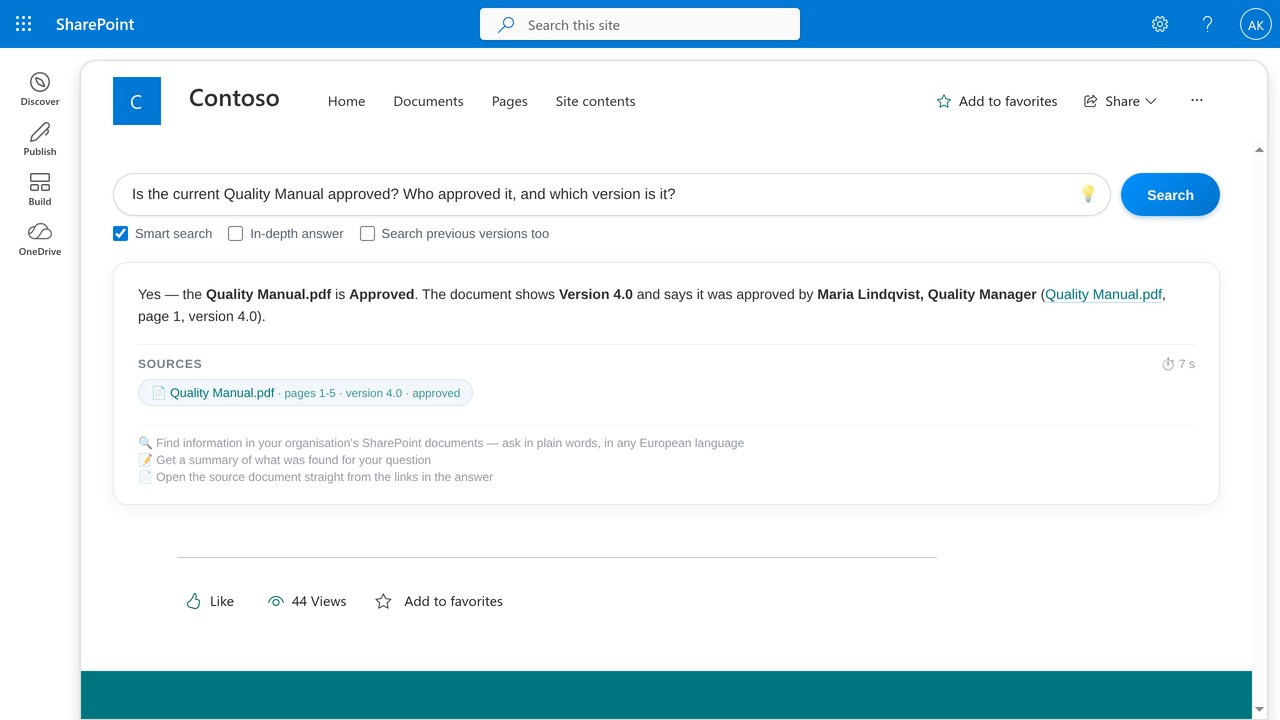
We build Answergrove, an assistant that answers from SharePoint documents and names the document, the page and the SharePoint version behind each answer. In our demo environment the Quality library has content approval switched on. The Quality Manual is at version 4.0 with status Approved, and version 3.0 is still in the history. The assistant states the approval status next to the source only where the library uses content approval, because elsewhere there is no status to report.
In production, Answergrove runs across 865 SharePoint sites with about 400,000 documents in four languages. In libraries that grew for years, we often find the version written in the file name, such as final_v7.docx, instead of in SharePoint versioning. In those libraries SharePoint knows the latest save of each file and nothing about which file applies.
Where KSJ fits
We usually start with a two-week pilot of Answergrove on one SharePoint site, typically the one that holds the quality or security procedures. At the end of those two weeks you know which libraries can already answer the version question from their settings, and which ones need the five checks above first.
References
- ^ a b c d e f g h i “How versioning works in lists and libraries”. Microsoft Support. Retrieved 3 October 2026.
- ^ a b c d e f g “Require approval of items in a list or library”. Microsoft Support. Retrieved 3 October 2026.
- ^ a “Enable and configure versioning for a list or library”. Microsoft Support. Retrieved 3 October 2026.
- ^ a “Approve or reject items or files in a site list or library”. Microsoft Support. Retrieved 3 October 2026.
- ^ a “Plan document versioning, content approval, and check-out controls in SharePoint Server”. Microsoft Learn. Retrieved 3 October 2026.
- ^ a “Enable content on a site to be searchable”. Microsoft Learn. Retrieved 3 October 2026.
- ^ a “Draft items are not crawled in SharePoint”. Microsoft Support. Retrieved 3 October 2026.
- ^ a b c “Learn about retention for SharePoint and OneDrive”. Microsoft Learn. Retrieved 3 October 2026.
- ^ a b c d e “Version history limits for document library and OneDrive overview”. Microsoft Learn. Retrieved 3 October 2026.
- ^ a b c “Plan version storage for document libraries”. Microsoft Learn. Retrieved 3 October 2026.
- ^ a “Use record versioning in SharePoint or OneDrive”. Microsoft Learn. Retrieved 3 October 2026.
- ^ a “ISO/IEC Directives, Part 1, Annex SL, Appendix 2: Harmonized structure for MSS with guidance for use (clauses 7.5.2 and 7.5.3; archived copy of the iso.org PDF)”. ISO. Retrieved 3 October 2026.