


Contents
The permission model stops being paperwork
Microsoft is explicit about the rule Copilot follows. Operating inside the Microsoft 365 service boundary does not grant Copilot tenant-wide visibility, and data access is always scoped to the signed-in user’s permissions.[1] Copilot only surfaces organizational data to which individual users have at least view permissions, and the same documentation adds the sentence most deployment plans skip: it is important that you are using the permission models available in Microsoft 365 services, such as SharePoint, to help ensure the right users or groups have the right access to the right content.[2]
Copilot does not grant access. It removes the effort that used to hide bad access. A file a colleague could technically open, but would never have found by navigating or searching, becomes a sentence in an answer with a citation link. Two things carry over unchanged: Copilot honors Conditional Access policies and multifactor authentication using the settings you already configured, and the grounding process honors the user identity-based access boundary, so it only accesses content the current user is authorized to access.
Sharing links do not all behave the same
This is where day-one expectations go wrong in both directions. Creating an Anyone link does not make the associated content appear in search results or make it accessible through Copilot.[3] The same holds for People in your organization links: creating one does not grant access to everyone in the organization, and the content does not become searchable or Copilot-accessible on creation. Microsoft describes both as a transferable, revocable secret key that must be redeemed, meaning someone clicks it, before the content becomes searchable for that person.
Redemption is not always a deliberate act. If a link is sent from the SharePoint or OneDrive web interface, by email in Outlook, or in a Teams chat message, it is automatically redeemed for individual recipients, up to a limit of 100. That automation does not apply to group recipients or to messages posted in Teams channels.
Specific people links work the other way around. Microsoft states that they make the associated file or folder appear in search results and make it accessible through Copilot for all users and security group members added to the sharing link.[3] The most restrictive-sounding link type is the one that feeds Copilot most directly.
One property matters for audit conversations: with Anyone links, people do not have to authenticate, and their access cannot be audited.[3] The default link type presented to users is configurable at the organization level and the site level, and a sensitivity label can set the default sharing link type for sites and documents.[4]
The group that quietly includes everyone
Everyone except external users, usually shortened to EEEU, is a built-in SharePoint group that automatically includes all internal users but excludes external guests.[5] Content shared with it is internal-public in practice. Microsoft treats this as a first-class oversharing signal: the Data access governance area of the SharePoint admin center offers a snapshot report on site permissions across the organization, which identifies sites with the broadest access, such as sites with thousands of users, external guests, or Everyone except external users permissions. A separate report identifies all sites, folders and files that are effectively public because of the EEEU or Everyone groups, so cleanup can be scripted instead of delegated to individual site owners.
What to check first
Start with reports, not restrictions. The snapshot reports give you the baseline: site permissions across the organization, site permissions for a specified user, and sensitivity labels applied to files.[5] The activity reports cover the last 28 days and show where users recently created the most sharing links and where content was shared with Everyone except external users. Microsoft recommends running the permission snapshot quarterly and the activity reports monthly.[5]
Check your licensing position first, because access to these reports is uneven. SharePoint Advanced Management capabilities become available to support a Copilot deployment when at least one user in the organization is assigned a Microsoft Copilot license, and that user does not need to be a SharePoint administrator.[6] Organizations with Microsoft 365 E5 but without SharePoint Advanced Management can reach Data access governance reporting, but they get no snapshot reports and no remedial actions, and their activity reports return only up to 10,000 sites.[6] In that configuration, data collection must be enabled first, data is stored for 28 days, reports become available 24 hours after enabling collection, and collection pauses if no reports are generated for three months.
The brakes, and which one is still available
Restricted SharePoint Search was the well-known interim control: an allow list of up to 100 sites, with a hub site counting as one entry while its associated sites stay covered.[7] It is retiring, and starting July 31, 2026, new enablement is blocked.[7] It is worth remembering why Microsoft never presented it as a fix: it is not a security boundary, it does not change any permissions, and sites a user recently accessed or that were shared with them still appear in their results.
Restricted Content Discovery is the current control. It is a site-level setting that limits discovery of a site’s content in organization-wide search results and Copilot responses, and it also removes AI entry points from those sites, so users do not see the Copilot button, AI actions menus including agent creation, or Create pages with AI.[8] The site shows a Restricted tag. It is set in the SharePoint admin center or with Set-SPOSite -Identity , and it requires a Copilot license together with SharePoint Advanced Management.[8]
Know its limits before relying on it. It does not change existing permissions, and users who already have access continue to access that content directly. It does not remove content from the search index, so Purview capabilities such as eDiscovery and auto-labeling keep working. It applies to SharePoint sites only, not OneDrive. It does not affect searches originating from site context, or summarizing a document the user already has open. Propagation is slow: for sites with more than 500,000 items, an update could take more than a week to be fully reflected in search and Copilot.[8]
Where sensitivity labels change the answer
Labels are the control that limits Copilot at the item level rather than at the discovery level. When a sensitivity label applies encryption, users must have the EXTRACT usage right, as well as VIEW, for Copilot to return the data.[10] EXTRACT is the right that grants permission to copy text, shown in the Purview portal as Copy and extract content. If content grants VIEW but not EXTRACT, the user cannot use Copilot while that content is open in an app, and Copilot will not summarize it, though it can still reference it with a link so the user can open and view it outside Copilot.[9]
Several boundaries follow. Items protected by Double Key Encryption are not accessible to Copilot at all. S/MIME protected emails are not returned.[10] Password-protected documents cannot be accessed unless already open in the same app. Sensitivity labels applied to containers such as sites, groups and Teams are not inherited by the items inside them, so a Confidential site label will not appear as sensitivity context on content Copilot returns from that site.[9] When Copilot creates new content from labeled sources, inheritance overrides an existing lower-priority label but never a higher-priority one. One prerequisite is easy to miss: when sensitivity labels are not enabled for SharePoint and OneDrive, the encrypted files Copilot can access are limited to data in use from Office apps on Windows.[9]
A realistic sequence
Microsoft organizes its own deployment blueprint into three pillars: remediate oversharing, set up guardrails, and meet regulations.[11] For a company of 50 to 300 people that is manageable. Run the permission and sharing reports before any licenses are assigned. Apply Restricted Content Discovery to the few sites that genuinely need review, such as finance and HR, while owners fix access, and remove the restriction afterwards instead of leaving it as permanent architecture. Use the change history report to find the recent permission changes that created the exposure, and the site access review feature when the fix belongs to a site owner rather than to you. Use Restricted Access Control where access must be limited to a specific group. Then label the content that must stay out of summaries regardless of who can open it. The uncomfortable part is that almost none of this is Copilot configuration. It is SharePoint hygiene that was deferrable for a decade and is not deferrable now.
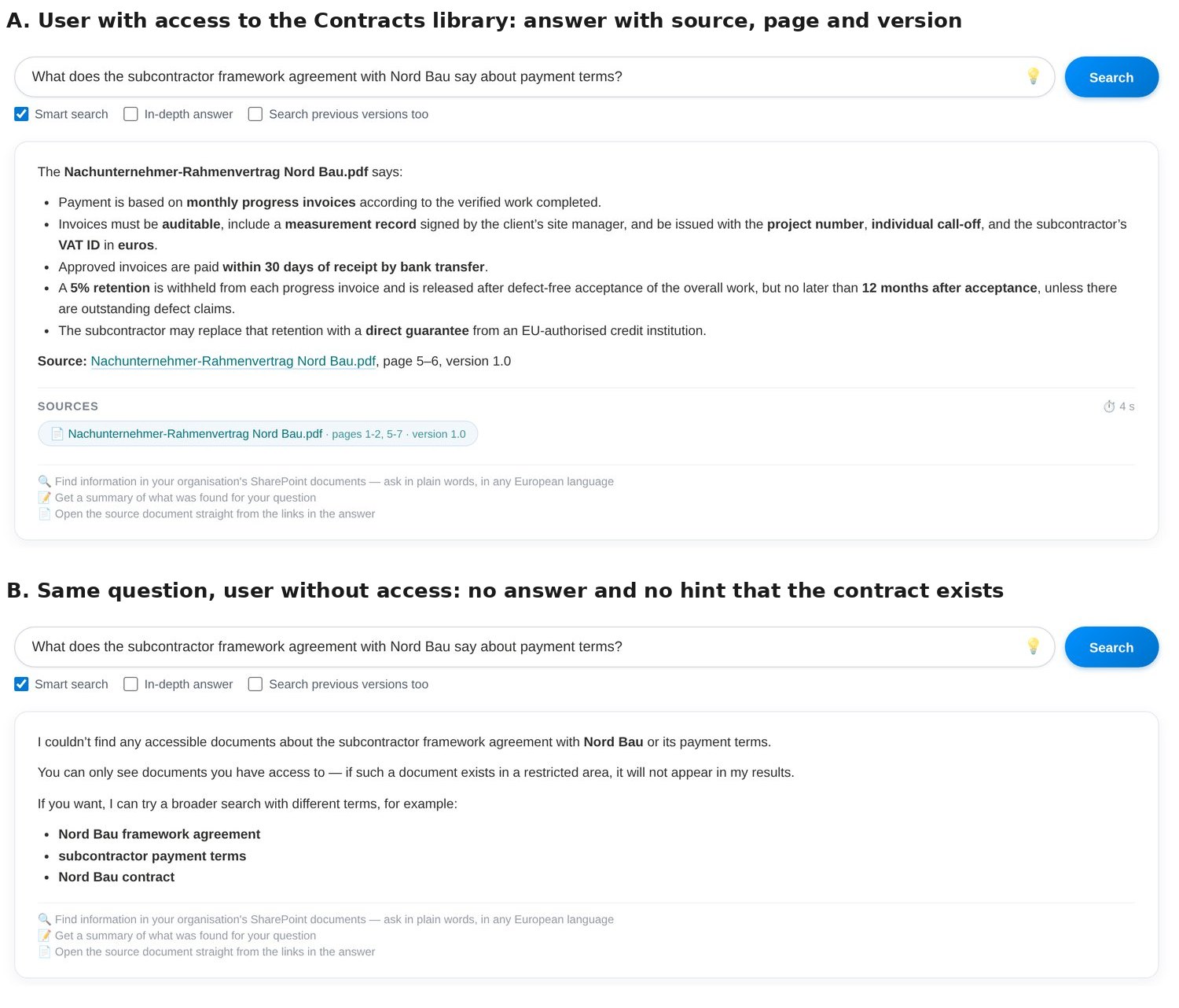
At KSJ we work at exactly this stage: reading what a tenant already reports about its own permissions, separating the sites that need an owner’s attention from the ones that need an administrative fix, and recording which control was applied where and why, so the next person to look at the tenant does not have to reconstruct it from screenshots. The same principle is built into our own assistant, Answergrove: it checks the asker’s SharePoint permissions before it answers, so a user without access to a document library gets no answer and no hint that the document exists (Figure 2).
References
- ^ “How does Microsoft Copilot work?”. Microsoft Learn. Retrieved 22 September 2026.
- ^ “Data, Privacy, and Security for Microsoft Copilot”. Microsoft Learn. Retrieved 22 September 2026.
- ^ a b c “How shareable links work in OneDrive and SharePoint in Microsoft 365 – SharePoint in Microsoft 365”. Microsoft Learn. Retrieved 22 September 2026.
- ^ “Change the default sharing link for a site – SharePoint in Microsoft 365”. Microsoft Learn. Retrieved 22 September 2026.
- ^ a b c “Data access governance reports for SharePoint sites – SharePoint in Microsoft 365”. Microsoft Learn. Retrieved 22 September 2026.
- ^ a b “Prerequisites for SharePoint Advanced Management – SharePoint in Microsoft 365”. Microsoft Learn. Retrieved 22 September 2026.
- ^ a b “Restricted SharePoint Search – SharePoint in Microsoft 365”. Microsoft Learn. Retrieved 22 September 2026.
- ^ a b c “Restrict discovery of SharePoint sites and content – SharePoint in Microsoft 365”. Microsoft Learn. Retrieved 22 September 2026.
- ^ a b c “Considerations for Microsoft Purview to manage Microsoft 365 Copilot and Channel Agent in Teams for security and compliance”. Microsoft Learn. Retrieved 22 September 2026.
- ^ a b “Microsoft Purview data security and compliance protections for Microsoft 365 Copilot and other generative AI apps”. Microsoft Learn. Retrieved 22 September 2026.
- ^ “Secure & Governed Data Foundation for Microsoft Copilot – Foundational Deployment Guidance”. Microsoft Learn. Retrieved 22 September 2026.
Further reading
- “Sharing and permissions in the SharePoint modern experience”. Microsoft Learn.